Already a Canon Owner? Register your product for software and firmware updates and opt in to receive personalised tips and exclusive offers
Support
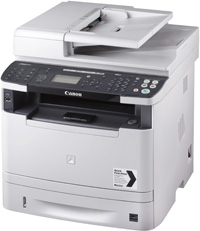
Canon i-SENSYS MF5980dw
Download drivers, software, firmware and manuals and get access to troubleshooting resources for your i-SENSYS product.
Drivers
For certain products, a driver is necessary to enable the connection between your product and a computer. On this tab, you will find the applicable drivers for your product or in the absence of any drivers, an explanation of your product's compatibility with each operating system.
Helpful Information : To access software, manuals and other content please use the tabs above.
Software
Software is an optional download that enables advanced functionality and helps you to get the most out of your product. On this tab, you can view and download the available software for your product.
Software
Software is an optional download that enables advanced functionality and helps you to get the most out of your product. On this tab, you can view and download the available software for your product.
Manuals
Manuals for your product or software are listed below.
Apps & Functions
On this tab, you can view the available Apps and functions that are compatible with your product.
Firmware
Firmware is permanent software which is installed on your product and enables it to function correctly. Canon may periodically release updates to this firmware and if there is an update available, this can be downloaded below.
FAQs & Help
On this tab you can find a selection of FAQs and other helpful information that can assist you with your question or issues.
Important Information
On this tab you can find a selection of FAQs that we feel are important to bring to your attention.
Error Codes
An error code or message may appear on your product for different reasons. Using the the search box you can access helpful information regarding your specific error code that will explain the cause and provide you with the necessary steps for how to proceed.
Specifications
Below are all the technical specifications for this product.