FAQ:
How do I set up and use the optional stamp feature with my laserfax L2000 / L2000 IP?
If the optional stamp feature is available on your machine, you can set the machine to stamp the front, lower left corner of every page you scan for sending.
Setting Up the Stamp Feature IMPORTANT: The stamp feature is available as an option. If it is not available on your machine, you cannot access this setting.
Follow this procedure to set up the stamp feature.
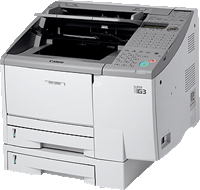
Open all three one-touch speed dialing panels. (The panels are located in the middle of the top, right hand side of the machine.) Press [Data Registration]. Press the "Up" or "Down" arrow key until "3.FAX SETTINGS" is shown on the display. Press [OK]. Press the "Up" or "Down" arrow key until "7.SYSTEM SETTINGS" is shown on the display. Press [OK]. NOTE: If the prompt "SYSTEM SETTINGS PASSWORD" is displayed, enter the System Administrator's password using the numeric keys and press [OK].
Press the "Up" or "Down" arrow key until "4.FAX DEFAULT" is shown on the display. Press [OK]. Press the "Up" or "Down" arrow key until "5.TX STAMP" is shown on the display. Press [OK]. NOTE: This item does not appear on the menu unless the stamp option is available on your machine.
Press the "Up" or "Down" arrow key until "TX STAMP OFF" or "TX STAMP ON" is shown on the display. Press [OK]. Press [Stop] to return to the Standby mode.
Setting Up the Stamp Action Follow this procedure to set up the stamp action when the stamp feature is turned ON.
Open all three one-touch speed dialing panels. (The panels are located in the middle of the top, right hand side of the machine.) Press [Data Registration]. Press the "Up" or "Down" arrow key until "3.FAX SETTINGS" is shown on the display. Press [OK]. Press the "Up" or "Down" arrow key until "3.TX SETTINGS" is shown on the display. Press [OK]. Press the "Up" or "Down" arrow key until "6.STAMP ACTION" is shown on the display. Press [OK]. Press the "Up" or "Down" arrow key until "DIRECT&MEMORY TX" or "DIRECT TX" is shown on the display. Press [OK]. DIRECT&MEMORY TX: This setting will stamp all documents you scan for either direct or memory sending. DIRECT TX: This setting will only stamp documents you scan for direct sending. Press [Stop] to return to the Standby mode.
Click here to view all applicable models Click here to close the applicable models list
Did this article answer your question?
Back to FAQ List